Shrink Cloud SQL for SQL Server Disks with Continuous Database Migration Service Replication
Database Migration Service can do more than move SQL Server into Google Cloud. For Cloud SQL customers, its continuous replication can also solve an awkward maintenance problem: shrinking an oversized disk while keeping application downtime to a short cutover. That’s a meaningful operational use of a tool usually treated as a one-time migration path.
Google Cloud’s Database Migration Service (DMS) supports Cloud SQL for SQL Server as a source. It can replicate continuously between Cloud SQL instances in the same project, across projects, or across regions. That makes DMS useful for day-two work such as storage management, as well as migrations between on-premises systems and cloud providers.
Why reclaim disk capacity?
Database storage tends to grow during an application’s life. Cloud SQL’s automatic storage increase helps prevent outages when traffic spikes, batch imports run, indexes are maintained, or temporary staging loads consume extra space. Later, teams may archive old records, remove obsolete data, or drop indexes they no longer need.
Deleting data doesn’t automatically reduce the size of SQL Server’s files. SQL Server marks freed pages in data files such as .mdf and .ndf as available for reuse; log truncation similarly frees space within .ldf transaction log files. The files can still occupy the peak space they reached. AUTO_SHRINK can reduce them automatically, but it’s generally discouraged in production because it can cause severe index fragmentation and add performance overhead.
To return unused space from SQL Server files, an administrator can run DBCC SHRINKFILE. That still doesn’t reduce the capacity of the Cloud SQL persistent disk. If the database is unlikely to grow back into that space soon, shrinking the disk itself may lower ongoing storage costs. That can matter after large archives or purges move data to cold storage or BigQuery, after a one-time spike leaves terabytes of excess provisioned capacity, or after refactoring, index removal, or compression reduces the database’s footprint.
To compare each database file’s allocated, used, and free space, along with the percentage in use, run:
SELECT
 DB_NAME() AS [DatabaseName],
 name AS [LogicalName],
 type_desc AS [FileType],
 -- Allocated size on disk (converted from 8KB pages to MB)
 CAST(size / 128.0 AS DECIMAL(18, 2)) AS [AllocatedSize_MB],
 -- Actually used space inside the file
 CAST(FILEPROPERTY(name, 'SpaceUsed') / 128.0 AS DECIMAL(18, 2)) AS [UsedSpace_MB],
 -- Free space left in the allocated file
 CAST((size - FILEPROPERTY(name, 'SpaceUsed')) / 128.0 AS DECIMAL(18, 2)) AS [FreeSpace_MB],
 -- Percentage of allocated space that is used
 CAST((FILEPROPERTY(name, 'SpaceUsed') * 100.0) / size AS DECIMAL(18, 2)) AS [SpaceUsed_Percent]
FROM sys.database_files;
Cloud Monitoring provides two useful signals for spotting a gap between disk capacity and actual consumption: database/disk/bytes_used, which tracks space used by database files and logs, and database/disk/quota, which reports the instance’s provisioned disk capacity.
Cloud SQL has a built-in storage shrink feature. It’s a reasonable choice when a planned maintenance window fits the workload. The catch is that native shrinking takes the instance offline for a period tied to the disk’s total allocated size; a multi-terabyte disk can mean hours of downtime.
If your production SLA can’t absorb that outage, DMS offers another route: replicate to a new Cloud SQL instance with a smaller disk while the application continues running, then cut over during a brief window. To see why that window can be short, it helps to understand how DMS keeps the destination current.
How DMS keeps the target synchronized
For migrations between Cloud SQL for SQL Server instances, DMS coordinates replication in a way similar to native SQL Server log shipping.
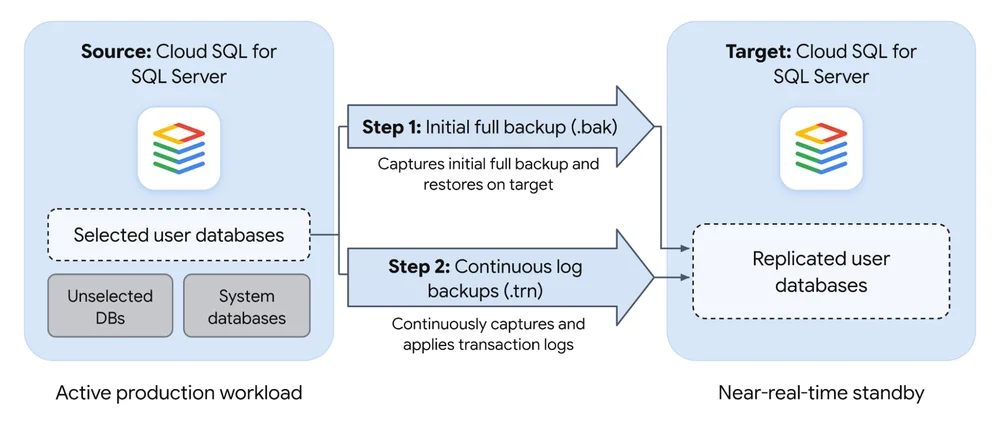
- Initial full backup: DMS captures a full
.bakbackup of the selected user databases and restores it on the target. - Continuous log backups: It then captures and applies
.trntransaction log backups to keep the target synchronized in near real time.
There’s an important boundary: replication happens at the user database level. Logins, linked servers, SQL Server Agent jobs, and other objects outside those databases don’t come across automatically. You’ll need to migrate server-level objects separately.
Use replication to replace an oversized disk
The practical advantage is that you can move the workload to a right-sized instance without taking the source offline for the full disk-shrink operation. The application stays on the source while DMS catches up; only the final switch requires a brief interruption.
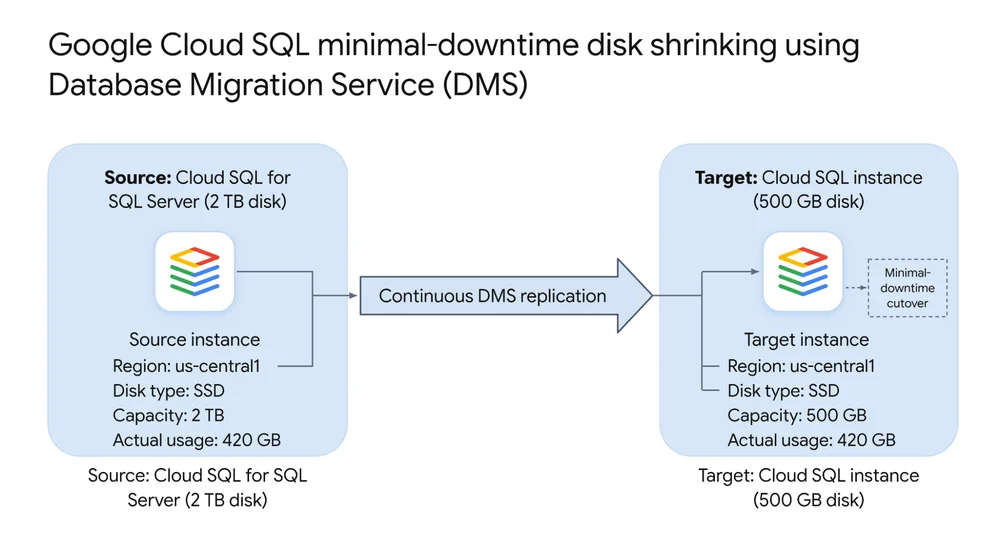
The DMS disk-shrink workflow:
- Create a target instance with a smaller disk, leaving room for transaction logs and expected future growth.
- Start a continuous DMS job with the existing Cloud SQL instance as the source.
- Let replication catch up while production traffic continues to the source.
- For cutover, stop application traffic, wait for the final transaction log to apply, promote the target in DMS, and point the application to the new instance.
Native shrinking and DMS migration
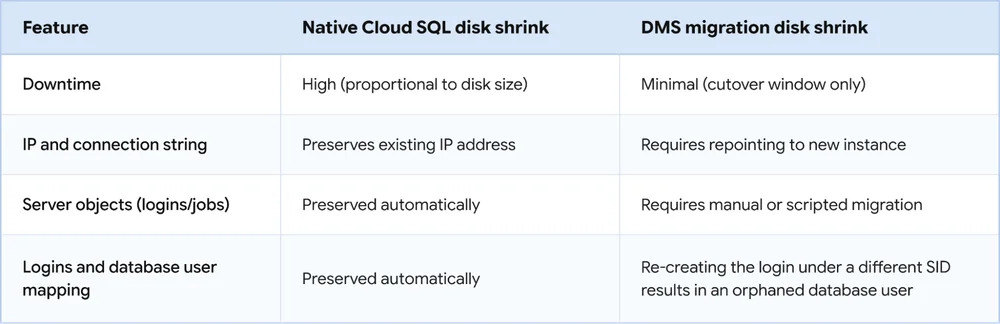
A successful cutover depends on more than the replicated database contents. Because DMS moves user databases rather than the whole SQL Server instance, server-level objects and user mappings need attention in the migration runbook.
Prepare server-level objects before cutover
Create the required objects on the destination before switching application traffic. DMS won’t copy them for you.
- Script source logins with
sp_help_revlogin, then recreate them on the target. - Script SQL Server Agent jobs and other server-level objects in SQL Server Management Studio (SSMS). In Object Explorer, right-click the object and choose
Script [Object] as > CREATE To > New Query Window / File.- SQL Server Agent jobs (
SQL Server Agent > Jobs): Review job steps for on-premises file paths or unsupported operating-system dependencies. - Linked servers (
Server Objects > Linked Servers): Use the same scripting approach, and enable thecloudsql.linked_serversdatabase flag before deploying them. - Extended events (
Management > Extended Events > Sessions): Script and deploy the sessions using the same approach.
- SQL Server Agent jobs (
- For Transparent Data Encryption (TDE), export the TDE certificate from the source and import it to the destination before cutover.
- Recreate instance settings on the destination to match the source, including database flags, Active Directory, and Entra ID configurations.
- If you use Polybase, re-encrypt the DMK so database-scoped credentials work correctly.
Check user mappings after cutover
A database user must map to a SQL Server login to authenticate. If the login is missing or its Security Identifier (SID) doesn’t match the SID stored with the database user, that user is orphaned.
Using sp_help_revlogin preserves SIDs when migrating logins. If logins are created by another method, the destination generates new server-level SIDs. The database users restored by DMS retain their source SIDs, so those users may be orphaned and need to be remapped after the target comes online.
Run this diagnostic query in each destination user database to find instance-authenticated users without a matching server login. Microsoft’s Troubleshoot Orphaned Users Guide covers the same detection process.
SELECT dp.type_desc, dp.sid, dp.name AS user_name
FROM sys.database_principals AS dp
LEFT JOIN sys.server_principals AS sp ON dp.sid = sp.sid
WHERE sp.sid IS NULL AND dp.authentication_type_desc = 'INSTANCE';
For each user returned, run ALTER USER in that database to associate the user with the appropriate destination login and retain its permissions:
ALTER USER [user_name] WITH LOGIN = [login_name];Make storage maintenance an operational use of DMS
DMS can serve as more than a bridge into Google Cloud. For Cloud SQL engineers facing an SLA that rules out a lengthy native disk shrink, its managed replication pipeline provides a way to move to a smaller disk while keeping downtime to the cutover. The storage savings depend on having capacity the database doesn’t need back soon, and a smooth migration depends on accounting for server-level objects and user mappings.
To configure Cloud SQL for SQL Server as a DMS source, see the official documentation. If you’re new to SQL Server on Google Cloud, start with the Cloud SQL for SQL Server introduction.